Enrollment Wizard
Plan your classes and build your schedule each semester using the Enrollment Wizard tool in MyPack Portal.
Are you enrolling in your first semester at NC State?
View the New Student MyPack Portal tutorial for a walkthrough introduction to MyPack Portal and how to enroll in classes.
Note that some features shown are only available for degree-seeking Undergraduate students.
What does the Enrollment Wizard do?
Regardless of your degree, program, year or career, you will register for classes using MyPack Portal.
Enrollment Wizard Overview
Registering is made easy with the Enrollment Wizard! To access the Enrollment Wizard:
- Log into MyPack Portal with your Unity ID and password
- Select your Student Homepage
- Select the ‘Planning & Enrollment’ tile
- From the left-hand navigation menu, select ‘Enrollment Wizard’
The main features of the Enrollment Wizard include:
- My Schedule: View your enrolled and waitlisted class schedule.
- Shopping Cart: View classes you have added to your Shopping Cart and add them to your schedule with one easy click.
- My Events: Add your extracurricular activities and work schedule to your calendar for easy semester planning.
- Add to Cart: Search for classes using one of three customized search options.
- My Calendar: View all of your classes and extracurricular activities in one convenient calendar.
How to Add a Class?
Use the Enrollment Wizard’s “Add to Cart” feature to temporarily store classes in your Shopping Cart before adding them to your class schedule.
You can add classes to your Shopping Cart prior to when you can begin enrolling. Adding a class to your Shopping Cart does not automatically enroll you in the class. Once you are able to begin enrolling, you can move classes from your Shopping Cart onto your schedule if there are seats available.
Want to know if a class is available? Look for the following class status symbols:


Want to know how class is offered? When looking at search results, hover over the section information to review the section instruction mode:
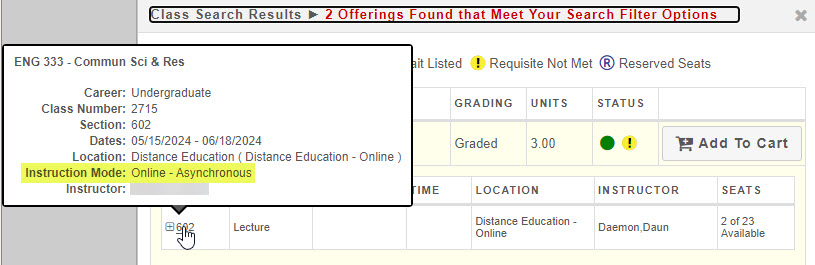
Instruction Mode definitions:
- In Person – class taught in person (on NC State’s campus)
- In Person Hybrid – class taught in a hybrid (in person and online) format, where 50% or more hours of instruction are completed in person than online
- In Person – Remote – class taught in person, but off campus in remote location
- Online Hybrid – class taught in a hybrid (in person and online) format, where 50% or more hours of instruction are completed online than in person
- Online – Asynchronous – class taught fully online asynchronously (no defined meeting days/times)
- Online – Synchronous – class taught fully online synchronously (defined meeting days/times)
- Study Abroad – class taught abroad, not permitted for students who aren’t participating in a Study Abroad program
Please note: students should not attempt to be waitlisted in multiple sections of the same course. This will cause system issues when attempting to enroll. If students are registered for one section but interested in another, they should use the Swap to Waitlist feature detailed below.
How to Drop or Swap a Class?
Dropping Classes
Using the Enrollment Wizard, open your My Schedule section, then select the class you wish to drop and click “Drop.” Once you have confirmed the change, the class will be removed from your schedule.
Swapping Classes
Swapping gives you the option to change your schedule without having to drop and add classes. You can either swap one section of a class for another or swap to a different class entirely.
To swap a class, click the “Swap” icon next to the class you wish to swap from. Then select the class you wish to swap into from the drop-down menu; make sure that the class you want to swap into has been added to your Shopping Cart.
Swap to Waitlist
Is your preferred class or section not available? The “Swap to Waitlist” feature may be the tool you need. This feature allows you to keep your seat in your current class while waiting for a seat to become available in your preferred class or section.
- Add the preferred class section to your Shopping Cart using the “Class Search” tool on the Add to Cart tab.
- Confirm that the preferred class section appears on the My Shopping Cart tab.
- On the My Shopping Cart tab, check the “Wait List” box for the preferred class section. Do not click “Enroll.”
- Navigate to the My Schedule tab.
- Find the class section you are currently enrolled in and would like to swap, then click “Swap.”
- Select the preferred class section from the dropdown menu.
- Once this process is complete, you will receive a popup notification. The notification will either confirm that you have been added to the waitlist and provide your position number, or explain why you could not be added.
You can continue to monitor your position on the waitlist from the My Schedule tab. Your position may change as students are added to or dropped from the waitlist.
You will remain enrolled in your original class section while you are on the waitlist. If a seat becomes available and you are enrolled from the waitlist, you will be added to the preferred class section and dropped from the original class section.
Important Reminders and Policies
Adding and dropping classes may affect your total enrolled credit hours, as well as other factors such as your tuition, billing, financial aid/scholarship eligibility, student program eligibility and progress toward degree. The following policies have detailed information that may be useful to you.